


Screen Recorder - AZ Recorder
4.758.19K Reviews
App Specs
- Version
- 6.9.6
- Updated On
- License
- Free
- Downloads
- 100,000,000+
- Developer
- AZ Screen Recorder
- Categories
- Video Players & Editors
- Platform
- Android, iOS
Screenshots

 Analysis by AppCompare
When I need to show someone what is happening on my phone, the challenge is rarely just pressing record. I also have to decide whether the sound matters, avoid capturing the wrong moment, and make a clip that is easy to send or watch. Screen Recorder - AZ Recorder is built for that practical job: it is an Android video recording and editing app from AZ Screen Recorder, with recording controls and basic ways to prepare footage in one place. I find it most useful when I want a quick, direct capture rather than a complicated production setup.
Choosing it for the job
There are plenty of phones with a screen-recording tool built in, so it is fair to ask why I would install another one. The built-in option is usually enough for a one-off capture. AZ Recorder makes more sense when I want recording controls close at hand, audio options, a pause-and-resume workflow, or a quick trim before sharing. It sits between a basic system recorder and a desktop editing setup: more flexible than the former for common tasks, but not a substitute for a full video editor.
The app is free to download, with in-app purchases ranging from $2.49 to $17.99 per item. It is rated for Everyone and runs on Android 6.0 or later. Its current version is 6.7.9, and its average rating is 4.8 from around two million ratings. More than 100 million installs suggest that screen recording is a familiar use case for a lot of Android users, though popularity alone does not guarantee that it will suit your phone or workflow.
I would consider it for a student making a short walkthrough, someone capturing a game session, or a friend who needs to explain a setting remotely. I would skip it if I only record once in a while and my phone’s built-in recorder already gives me everything I need. I would also choose a more specialized editor if the finished video needs detailed cutting, careful audio mixing, or a polished sequence assembled from many clips.
Getting Started with AZ Recorder
First things first, setting up AZ Recorder is a breeze. Once you download it from your app store, you’ll find it doesn’t bombard you with a complicated setup process. It’s as simple as giving the app the necessary permissions, and you’re ready to start recording. I mean, who doesn’t love an app that respects your time?
Interface and Usability
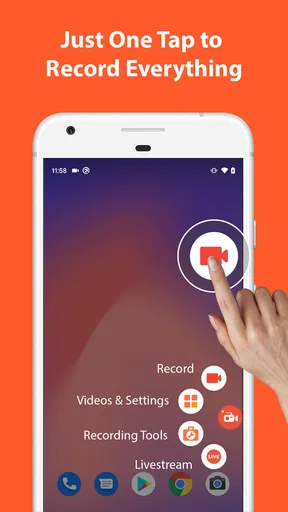
The interface is clean and intuitive, which is perfect if you’re like me and get overwhelmed by too many buttons. The main screen gives you easy access to all the features you need. With just a tap, you can start recording, take a screenshot, or even go live. The floating widget is a nice touch too, letting you control your recordings without having to switch apps. It’s like having a little assistant on your screen.
Features That Stand Out
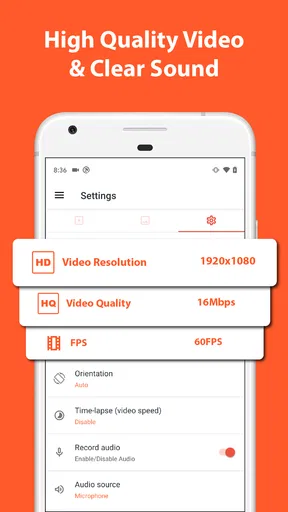
Now, let’s talk features. One of the things that really stands out is the ability to record in high-definition. Whether you’re making a tutorial or capturing gameplay, the quality is top-notch. There’s also a nifty feature that lets you record audio from both your mic and the device. This is a game-changer if you’re doing commentary or need to capture in-game sounds.
Worth Reading Before You Choose

Switching to Android Auto Means Rethinking Your Driving Routine

Google Calendar Makes a Crowded Week Easier to Manage

Baby Panda World Brings Quick Play to Modern Phones, but Its Game Library Feels Busy

ESPN’s Live Game View Makes Following Close Games Easier

QuizzLand Review: A Good Fit for Short Trivia Breaks, Not Every Player

Basketball Stars: Multiplayer Is Fast, but Can It Recover When Matches Go Wrong?
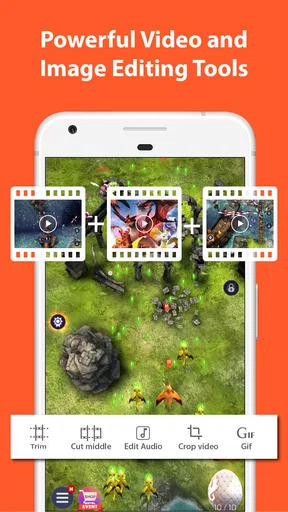
Another cool feature is the ability to pause and resume recording. This is perfect for those times when you need to take a quick break or if there’s a moment you don’t want to include. You can also trim your videos right within the app, saving you the hassle of using another app just to make a quick edit.
From recording to a shareable clip
A useful way to work is to decide the audience before you tap record. For a help clip, I would open the relevant screen first, close anything private, and then start the capture. For gameplay, I would consider whether commentary adds anything; if it does, checking the microphone before the interesting moment matters more than adjusting settings afterward. That small bit of preparation can save a second take and keep the final clip focused.
Pause and resume can help when a tutorial has a wait, a loading screen, or a step that would make the explanation drag. I would pause during the dead time, resume at the next useful action, and then trim the beginning or end in the app. This is a practical compromise, not frame-by-frame editing: it reduces obvious excess, while a video with several sections or precise timing may still need a separate editor.
Audio is another decision worth making up front. If I am narrating, I would make a brief test recording and listen back before committing to a long walkthrough. If the device sound is the point, such as in a game clip, I would avoid talking over it unless commentary is intentional. Capturing both sources can be handy, but it can also make a clip busy; the best choice depends on whether a viewer needs my explanation, the phone’s audio, or both.
Live Streaming and Other Perks
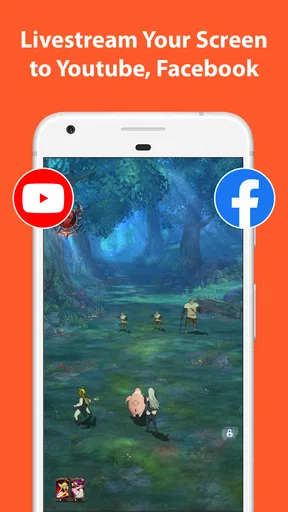
If you’re into live streaming, AZ Recorder has you covered. You can go live on platforms like Facebook and YouTube directly from the app. Plus, the overlay feature is pretty sweet for adding text or logos to your videos. It’s like having a mini production studio in your hands.
And for those of you who love personalizing your content, you can even draw on the screen while recording. Imagine highlighting key points in a tutorial or drawing attention to something funny in a video. It’s these little things that make the app stand out.
Handing off the recording
For a simple support request, the handoff can be as straightforward as trimming a clip and sharing it through the usual option on your phone. I would watch the edited result once before sending it: a recording can contain notifications, account details, or a pause that makes sense to me but not to the recipient. That final check is especially useful for tutorials, because a viewer needs to see the action clearly and understand where the next step begins.
Live streaming serves a different purpose from recording a clip for later. It is useful when an audience should see the screen as events happen, while a local recording gives me a chance to remove pauses and choose what to share. I would not treat live broadcast as a shortcut for a carefully edited lesson; it trades preparation and revision for immediacy. For a polished presentation, recording first and editing elsewhere is usually the safer route.
Features That Stand Out
Now, let’s talk features. One of the things that really stands out is the ability to record in high-definition. Whether you’re making a tutorial or capturing gameplay, the quality is top-notch. There’s also a nifty feature that lets you record audio from both your mic and the device. This is a game-changer if you’re doing commentary or need to capture in-game sounds.
Another cool feature is the ability to pause and resume recording. This is perfect for those times when you need to take a quick break or if there’s a moment you don’t want to include. You can also trim your videos right within the app, saving you the hassle of using another app just to make a quick edit.
Live Streaming and Other Perks
If you’re into live streaming, AZ Recorder has you covered. You can go live on platforms like Facebook and YouTube directly from the app. Plus, the overlay feature is pretty sweet for adding text or logos to your videos. It’s like having a mini production studio in your hands.
And for those of you who love personalizing your content, you can even draw on the screen while recording. Imagine highlighting key points in a tutorial or drawing attention to something funny in a video. It’s these little things that make the app stand out.
Performance and Reliability
Performance-wise, AZ Recorder doesn’t disappoint. It runs smoothly without any noticeable lag, even during long recording sessions. The app is designed to be lightweight, so it doesn’t hog resources or drain your battery excessively. This means you can record longer without worrying about your phone turning into a hot potato.
In terms of reliability, I’ve never encountered crashes or bugs during my time using it. The developers seem dedicated to keeping it updated, which is always a reassuring sign. It’s nice to have an app that you know won’t bail on you when you need it most.
Where the workflow can snag
A screen recording is a heavier task than taking a screenshot, so I would not begin a long capture with a nearly full phone or while expecting to multitask through several demanding apps. A game can behave differently while being recorded, and a long session naturally creates more footage to review and store. I would make a short test first, check the result, and leave room for the clip before relying on the app for something I cannot repeat.
Some screens or media may not record in the way you expect, and audio behavior can vary with the app being captured and the phone’s setup. If a recording is intended as evidence of a particular sound or sequence, I would verify it immediately rather than assume every app permits the same capture. This is not a flaw unique to AZ Recorder; it is a reminder that recording the screen does not guarantee that every source will behave like an ordinary video.
Overlays and drawing tools are useful when they clarify a point, but they can also obscure the very button or detail a viewer needs to see. I would keep annotations brief and place them away from important controls. Likewise, the floating widget saves app switching, yet it takes up screen space; for a clean tutorial, I would check where it sits before recording and avoid letting it cover the steps.
Performance and Reliability
Performance-wise, AZ Recorder doesn’t disappoint. It runs smoothly without any noticeable lag, even during long recording sessions. The app is designed to be lightweight, so it doesn’t hog resources or drain your battery excessively. This means you can record longer without worrying about your phone turning into a hot potato.
In terms of reliability, I’ve never encountered crashes or bugs during my time using it. The developers seem dedicated to keeping it updated, which is always a reassuring sign. It’s nice to have an app that you know won’t bail on you when you need it most.
Final Thoughts
All in all, Screen Recorder - AZ Recorder is a solid choice if you’re looking for a reliable screen recording app. It’s packed with features that cater to both casual users and those needing more advanced capabilities. Whether you’re recording gameplay, tutorials, or just capturing random moments, this app delivers without a hitch.
So, if you’re in the market for a screen recorder, give AZ Recorder a shot. It’s user-friendly, versatile, and just gets the job done. What more could you ask for? Happy recording!
Pros
- Easy to use with intuitive controls.
- No time limits on recording sessions.
- High-quality video output options.
- Offers video editing tools within the app.
- Supports live streaming to social platforms.
Cons
- Contains ads in the free version.
- Some features require in-app purchases.
- Can be resource-intensive on older devices.
- Lacks advanced editing features.
- No option for cloud saving directly.
FAQs for Screen Recorder - AZ Recorder
How do I start recording my screen with AZ Screen Recorder?
To start recording, open the AZ Screen Recorder app and grant any necessary permissions. Tap the overlay icon that appears on your screen, then select the record button. You can customize settings such as resolution and frame rate before beginning. Once ready, tap 'Start' to begin capturing your screen.
Does AZ Screen Recorder have a time limit for recordings?
No, AZ Screen Recorder offers unlimited recording time. You can record for as long as your device's storage allows. However, ensure you have sufficient space available, as longer recordings can consume a significant amount of storage, especially at higher resolutions or frame rates.
Can I edit my recordings within the AZ Screen Recorder app?
Yes, AZ Screen Recorder includes basic editing features. You can trim your videos, add background music, and merge clips. These editing tools are user-friendly, allowing you to quickly polish your recordings without needing additional software. However, for more advanced editing, you might need a dedicated video editing app.
Is AZ Screen Recorder free to use?
AZ Screen Recorder offers a free version with essential features suitable for most users. However, there is an option to upgrade to the premium version, which removes ads and unlocks additional features like GIF conversion, video compression, and more detailed editing tools, providing a more comprehensive recording experience.
What should I do if AZ Screen Recorder crashes or doesn’t work properly?
If you experience issues with AZ Screen Recorder, try restarting your device and ensuring the app is up to date. Check for any system updates on your device as well. If problems persist, consider contacting support through the app's settings or visiting their official website for troubleshooting tips and updates.


